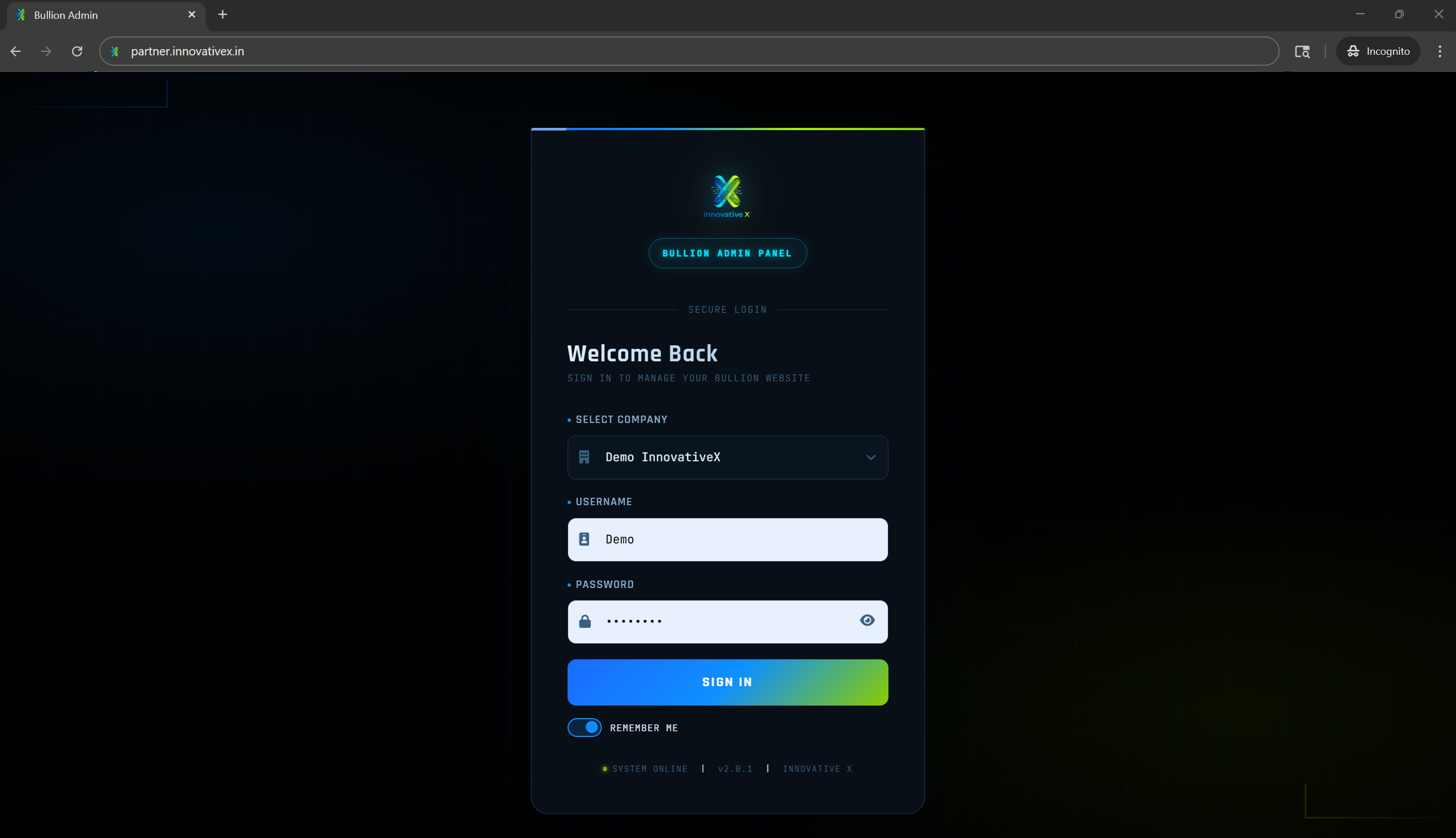
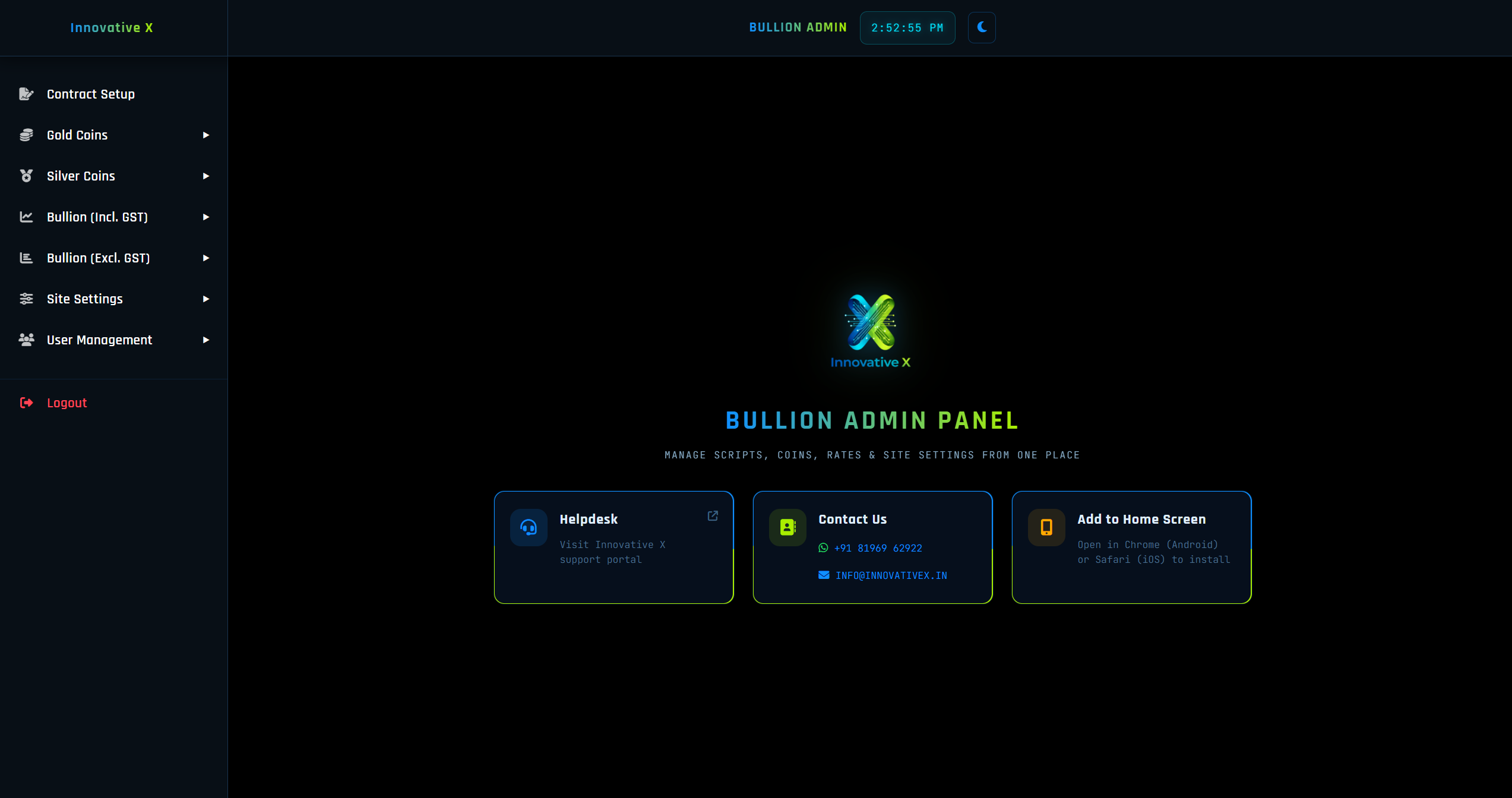
Follow these simple steps to log in to your admin panel and access the dashboard:
Step-by-step articles to help you set up, manage, and get the most out of your Live Bullion View platform.
Follow these simple steps to log in to your admin panel and access the dashboard:
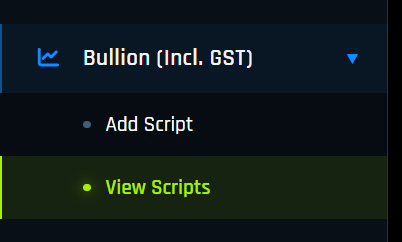
Step 1: Navigate to Bullion Including GST Section
After logging in, go to the navigation panel and select Bullion Including GST. You will see two options:
Step 2: Add a New Script
Click on Add Scripts and fill in the following fields:
ℹ️ Note
No making charges are included in Bullion Including GST scripts. Making charges are only applicable in coin entries.
Step 3: How This Appears on the Home Screen
Once saved, this script appears on the frontend home screen under the Bullion Including GST section with live prices applied automatically.
💡 How Automation Works with Coins
When you link a coin to this script using Automatic mode, that coin's premium is pulled directly from this script. Change the premium here once — all linked coins update instantly across the entire platform.
Step 4: Automation Lock — Why You Can't Delete a Script Immediately
⚠️ Script Deletion Lock
Once a script is applied to any coin, it cannot be deleted directly. You must first remove the link from every coin using it (switch to Manual or select a different script). Only after all coins are unlinked can you delete the script. This ensures no coin is left without a valid pricing source.
Step 5: Edit a Script
Go to View Scripts and click edit on the script you want to update. You can modify:
👁️ How It Looks on the Frontend (Client Portal)
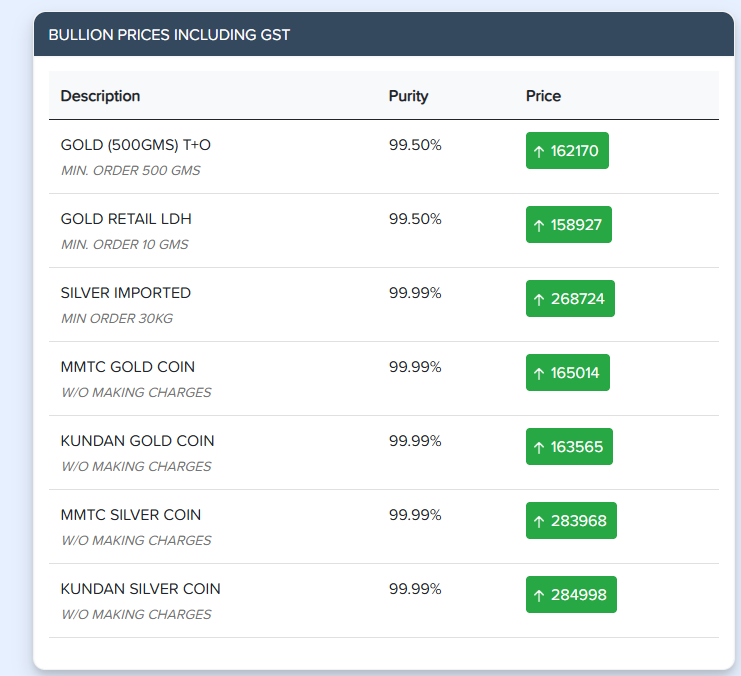
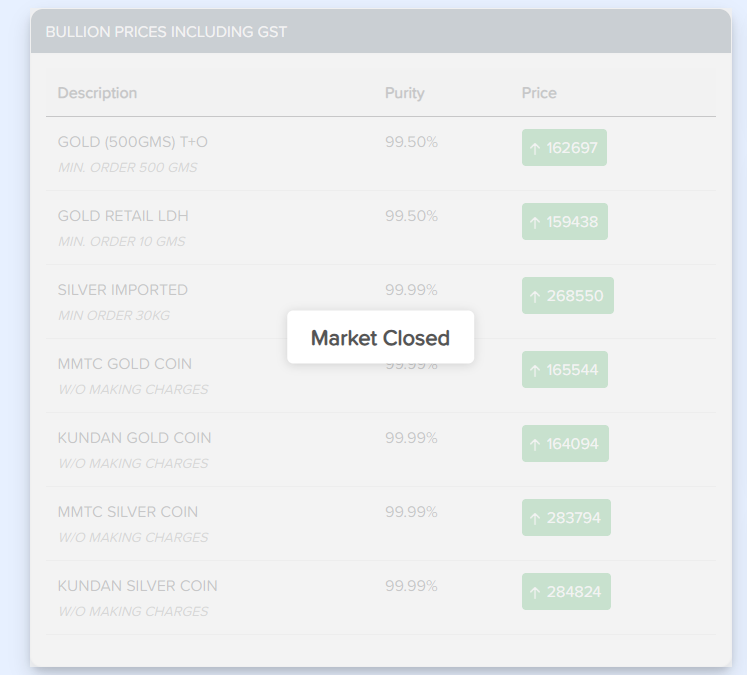
Below is an example from a live client portal showing how the Bullion Including GST section appears to your customers.
The BULLION PRICES INCLUDING GST table shows your customers the final price with GST already included. Here is what each column means:
📌 What is Bullion Excluding GST?
This section displays the price of bullion excluding GST — so customers can clearly see the price breakdown (base price vs GST separately).
Important: This does NOT mean gold or silver is sold without GST. As per Government of India laws, 3% GST is compulsory on all bullion transactions. This section simply shows the price before GST is added, so customers understand the full cost breakdown clearly.
Step 1: Navigate to Bullion Excluding GST Section
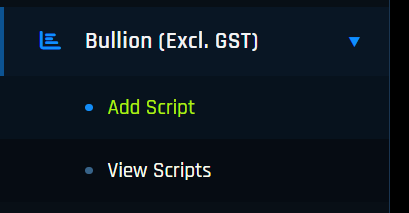
After logging in, go to the navigation panel and select Bullion Excluding GST. You will see two options:
Step 2: Add a New Script
Click on Add Scripts and fill in the following fields:
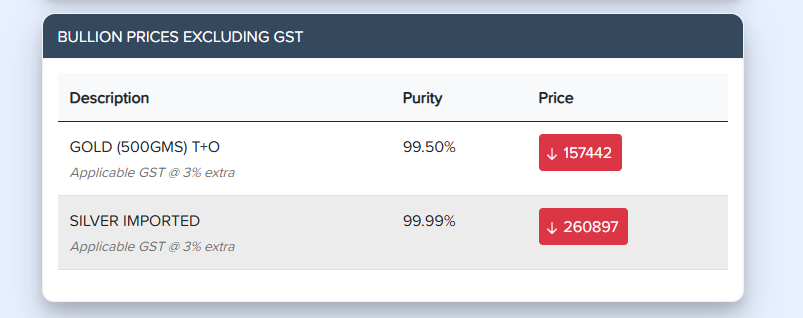
👁️ How It Looks on the Frontend (Client Portal)
Below is an example from a live client portal showing how both Bullion Including GST and Bullion Excluding GST sections appear side by side to customers.
Bullion Including GST
Bullion Excluding GST
The BULLION PRICES EXCLUDING GST table shows the base price before GST. Here is what each element means:
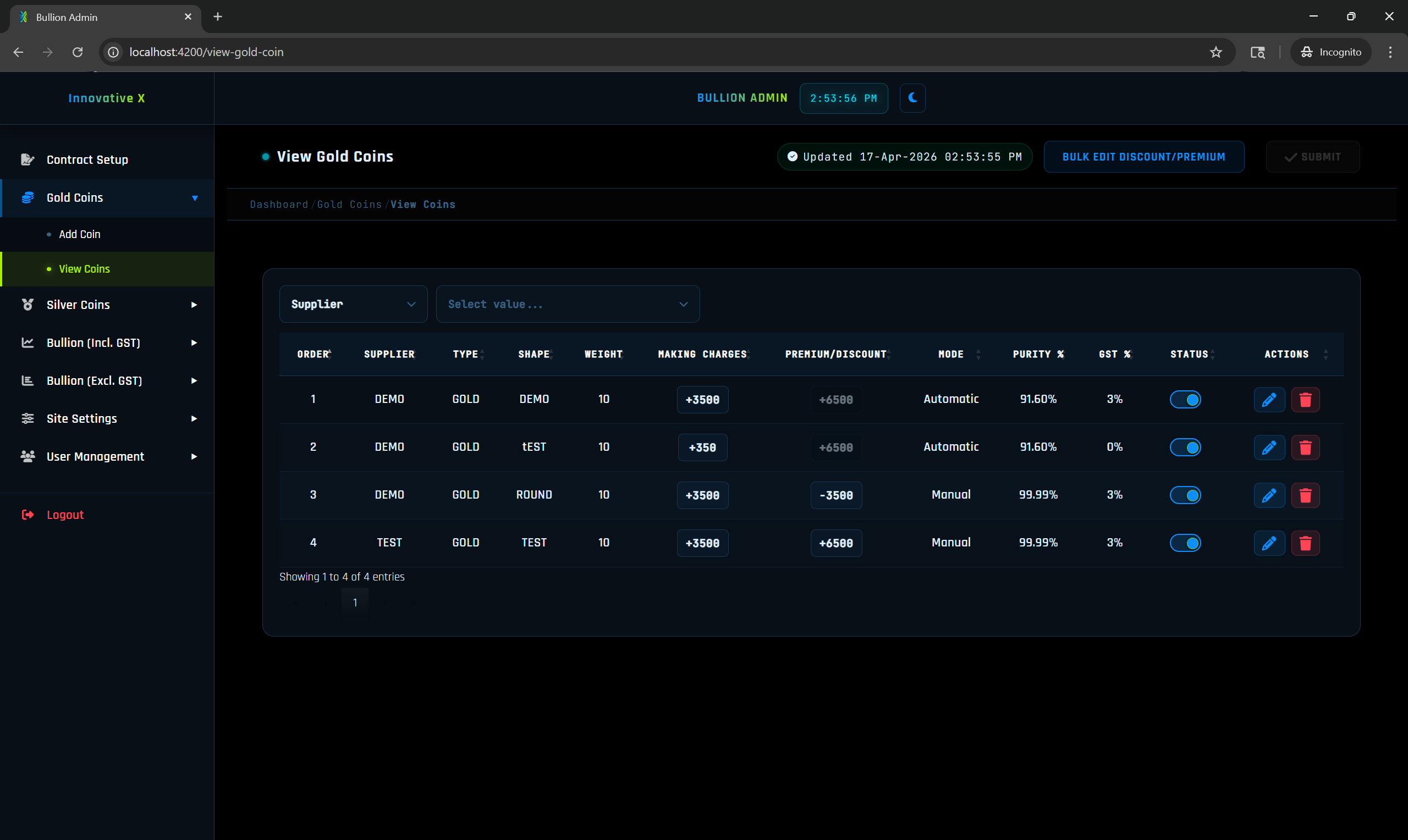
Step 1: Navigate to Gold Coin Section
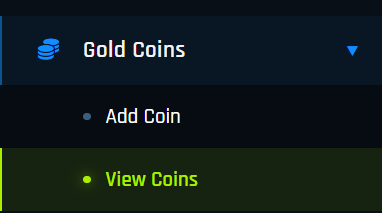
Click on Gold Coin in the Navigation Panel. You will see two options:
⚠️ Important — Understand How Calculation Works First
Before adding a coin, please understand how the system calculates the final price. Read below before filling the form.
📘 Scenario 1 – Higher Purity (99.99%)
Example Details:
✅ Final Coin Price = ₹32,340
📗 Scenario 2 – Lower Purity (91.6%)
Example Details:
✅ Final Coin Price = ₹28,540
🔎 How Purity Works in Our System
99.5% purity is the base standard — the common base used in the Indian bullion market.
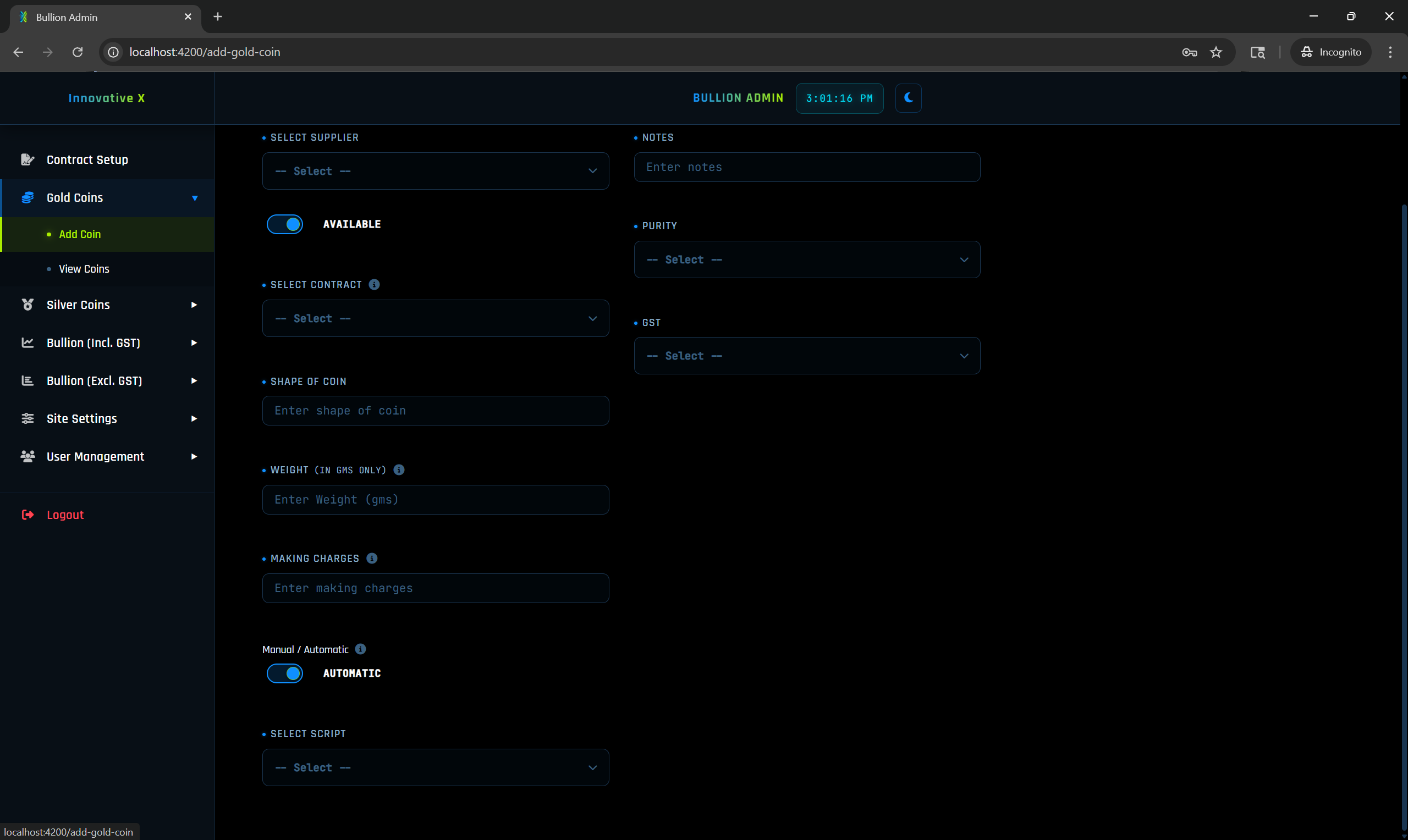
📝 Step-by-Step: How to Fill the Add Gold Coin Form
Now that you understand the calculation, here is how to fill in each field:
👁️ How It Looks on the Frontend (Client Portal)
Below is an example from a live client portal showing how coins appear to your customers.
1. Coin Rates Navigation Menu
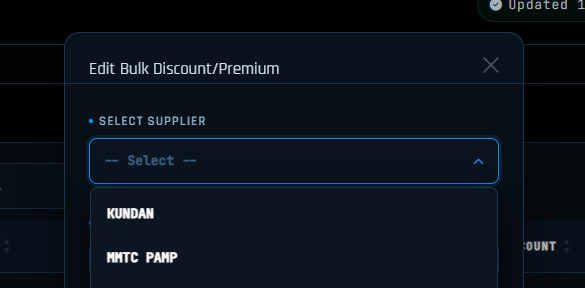
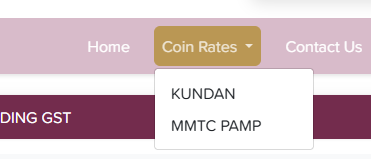
Customers see a Coin Rates menu in the navigation bar. Clicking it shows a dropdown with all your suppliers — e.g. KUNDAN and MMTC PAMP. Each supplier tab is created automatically based on the supplier you selected when adding the coin.
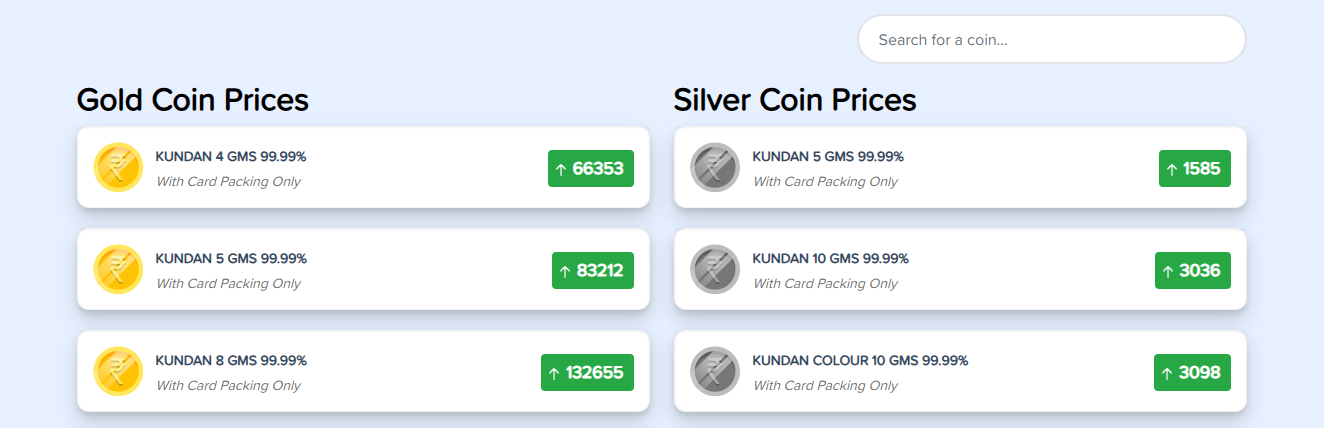
2. Coin Prices Display Page
Coins are listed under Gold Coin Prices and Silver Coin Prices:
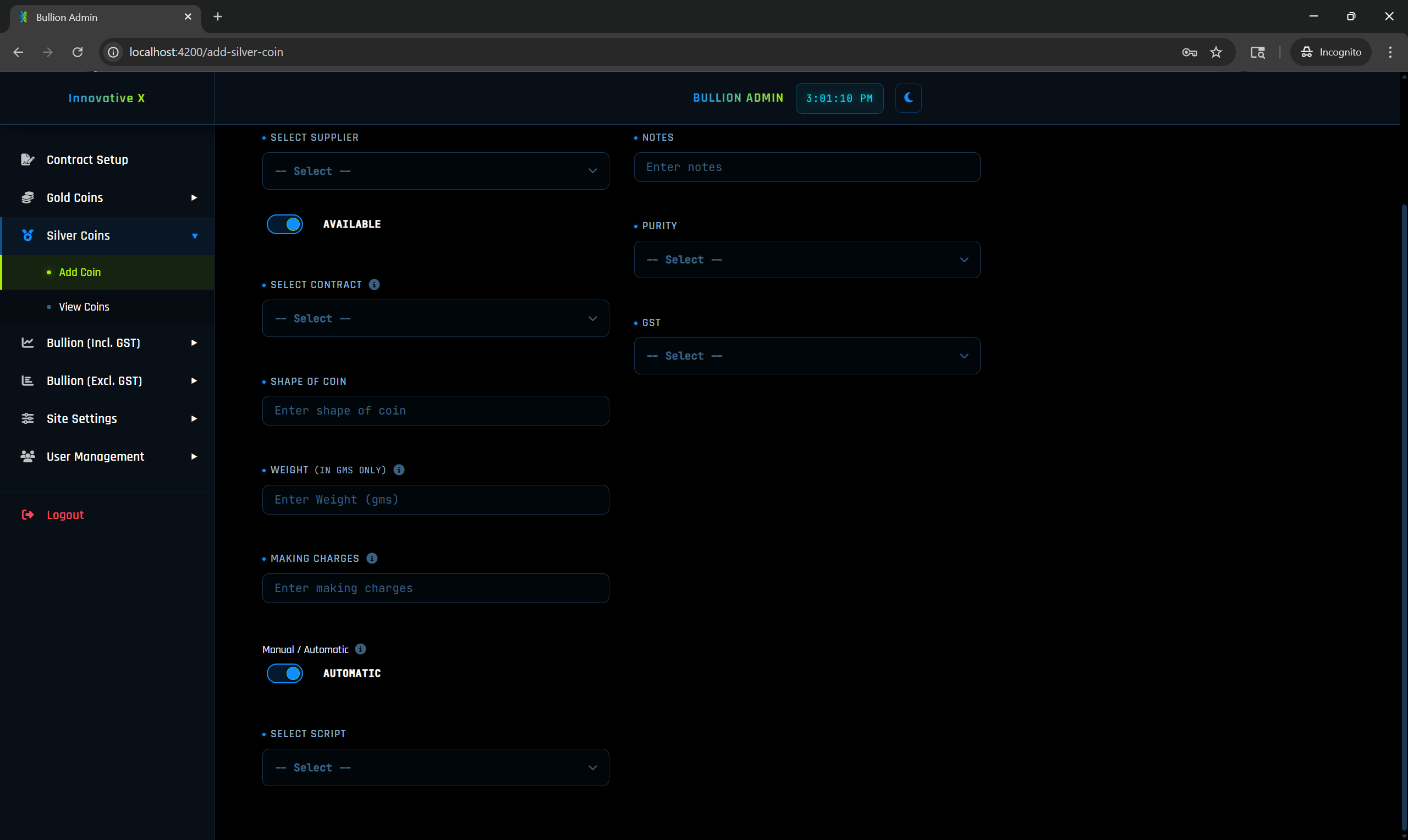
Step 1: Navigate to Silver Coin Section
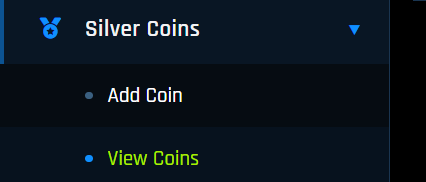
Click on Silver Coin in the Navigation Panel. You will see two options:
⚠️ Important — Silver Purity Standard is Different from Gold
Silver uses 99.99% as the base purity standard and is calculated on 1 KG (1000 grams) Future Market price — not 10 grams like gold.
🔎 How Silver Purity Works in Our System
99.99% is the base purity standard for silver.
📘 Example – Silver Coin (Purity 99.90%)
Example Details:
✅ Final Silver Coin Price = ₹28,916
⚖️ Key Differences: Gold vs Silver Calculation
🥇 Gold
Base Rate: 10 grams
Base Purity: 99.5%
Above 99.5 → Price ↑
Below 99.5 → Price ↓
🥈 Silver
Base Rate: 1 KG (1000g)
Base Purity: 99.99%
At 99.99 → No change
Below 99.99 → Price ↓
📝 Step-by-Step: How to Fill the Add Silver Coin Form
The Silver Coin form works the same as Gold Coin — the key difference is you select Silver or Silver Next as the contract type.
👁️ How It Looks on the Frontend (Client Portal)
Silver coins appear in the same frontend display as Gold coins — under the same supplier tab in the Silver Coin Prices section.
1. Coin Rates Navigation Menu
Customers see the Coin Rates dropdown in the navigation showing all supplier tabs. Silver coins appear under the same supplier tab as Gold coins.
2. Coin Prices Display Page
Silver coins are shown in the Silver Coin Prices section with a grey/silver icon. Live price is calculated automatically using 1 KG Future Market silver rate, purity, making charges, premium, and GST — all in real time.
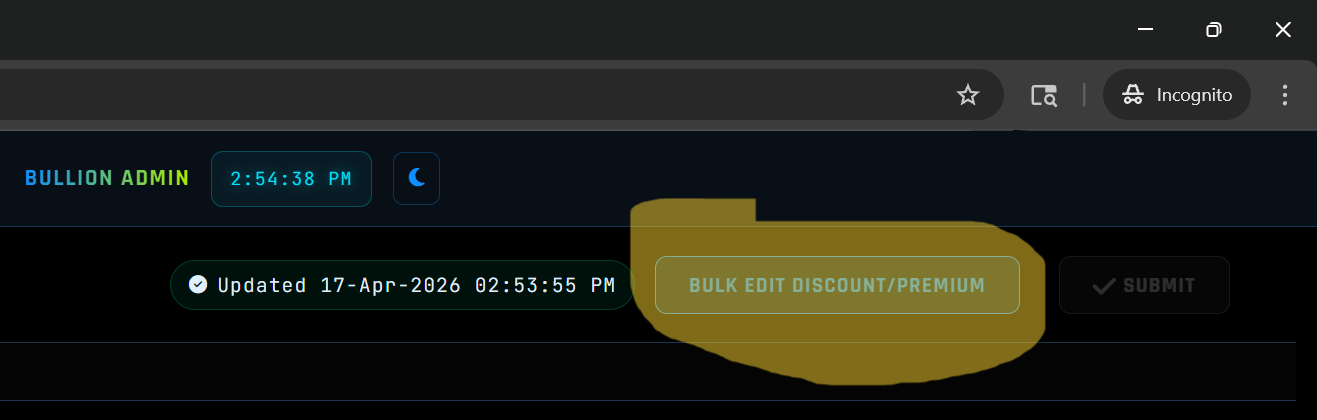
The Bulk Edit Discount/Premium feature is available in every View section — View Gold Coins, View Silver Coins, View Bullion Including GST, and View Bullion Excluding GST. It allows you to update the premium or discount for multiple entries at once with a single click — without editing each one individually.
⚡ Why Use Bulk Edit?
Instead of opening and editing each coin one by one, Bulk Edit lets you select a supplier or contract type and apply a new premium/discount to all matching entries in seconds.
Step 1: Open Any View Section
Navigate to any of the following sections and click the BULK EDIT DISCOUNT/PREMIUM button in the top right corner:
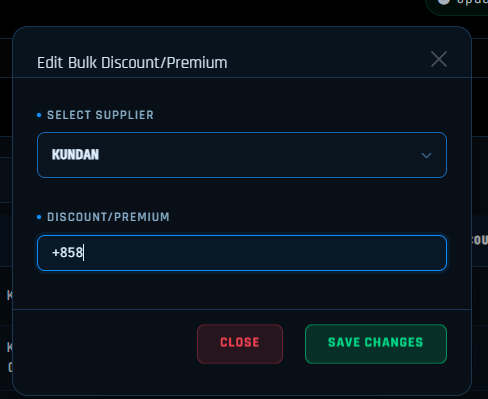
🪙 Bulk Edit for Gold Coins / Silver Coins
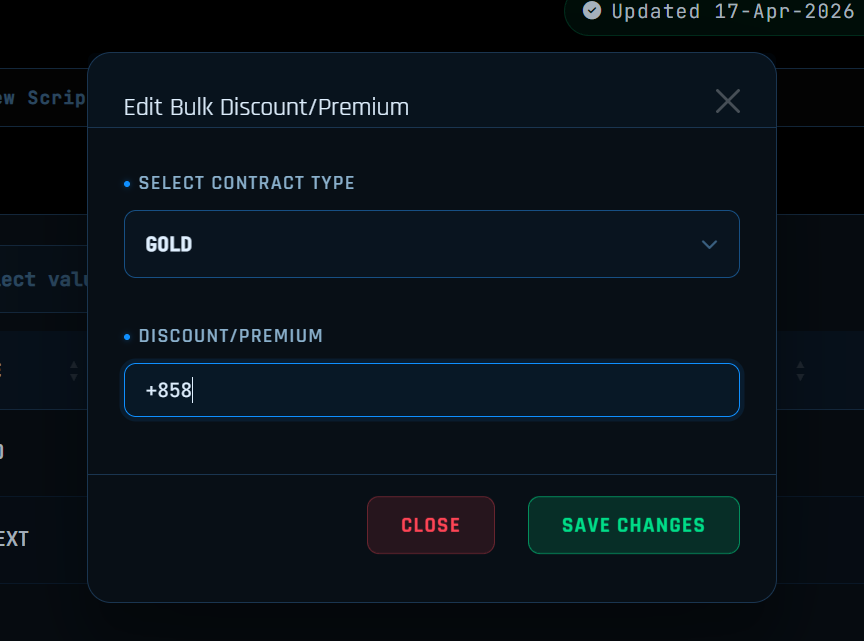
When you click Bulk Edit in the Gold Coins or Silver Coins section, a popup appears with the following fields:
ℹ️ Gold and Silver are Independent
Gold Coins have their own Bulk Edit and Silver Coins have their own Bulk Edit. Changing premium in Gold Coins section does not affect Silver Coins and vice versa.
📊 Bulk Edit for Bullion Including GST / Bullion Excluding GST
When you click Bulk Edit in the Bullion sections, the popup shows a Select Contract Type instead of supplier — because bullion scripts are organized by contract, not supplier:
⚠️ Important — Bulk Edit Skips Automatic Mode Coins
If a coin is set to Automatic mode and linked to a bullion script, Bulk Edit will skip that coin entirely.
This is by design. Automatic mode coins get their premium directly from their linked bullion script — they are not meant to be edited individually or in bulk.
To update Automatic mode coins: Go to the bullion script they are linked to and update the premium there. All coins linked to that script will update automatically and instantly.
📌 Quick Summary
The Site Setting section is your complete control panel for everything your customers see on the frontend of your web app. From homepage content to legal pages and social media links — all managed from one place.
How to Access: Go to Site Setting in the navigation panel. You will see 8 options in the right menu:
🏠 1. Home Page Config
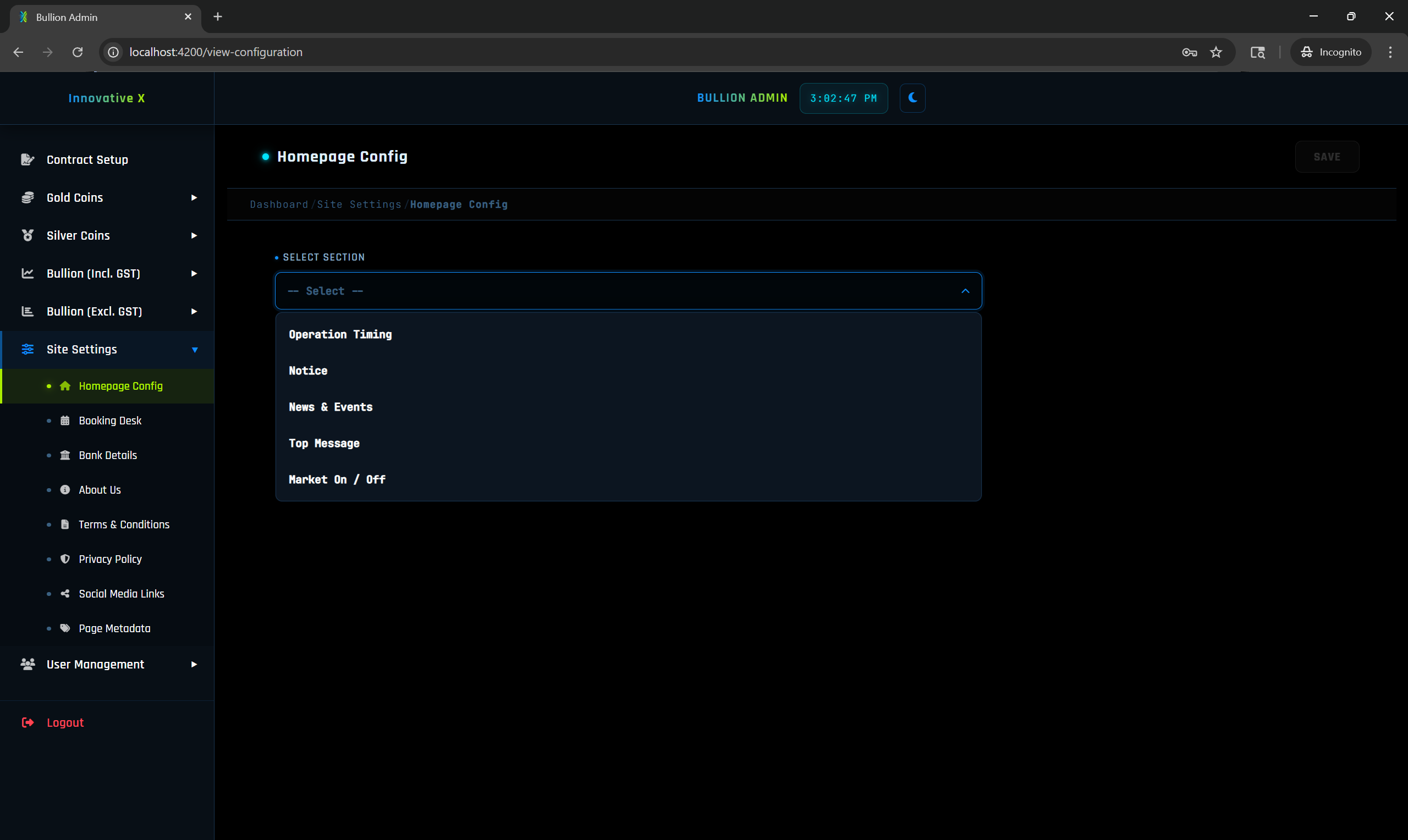
Controls everything displayed on the home screen of your client portal. Click Configuration and select a section from the dropdown:
🕐 Operation Timing
Set your business operation hours shown to customers. E.g. "Mon–Sat: 10:00 AM – 7:00 PM".
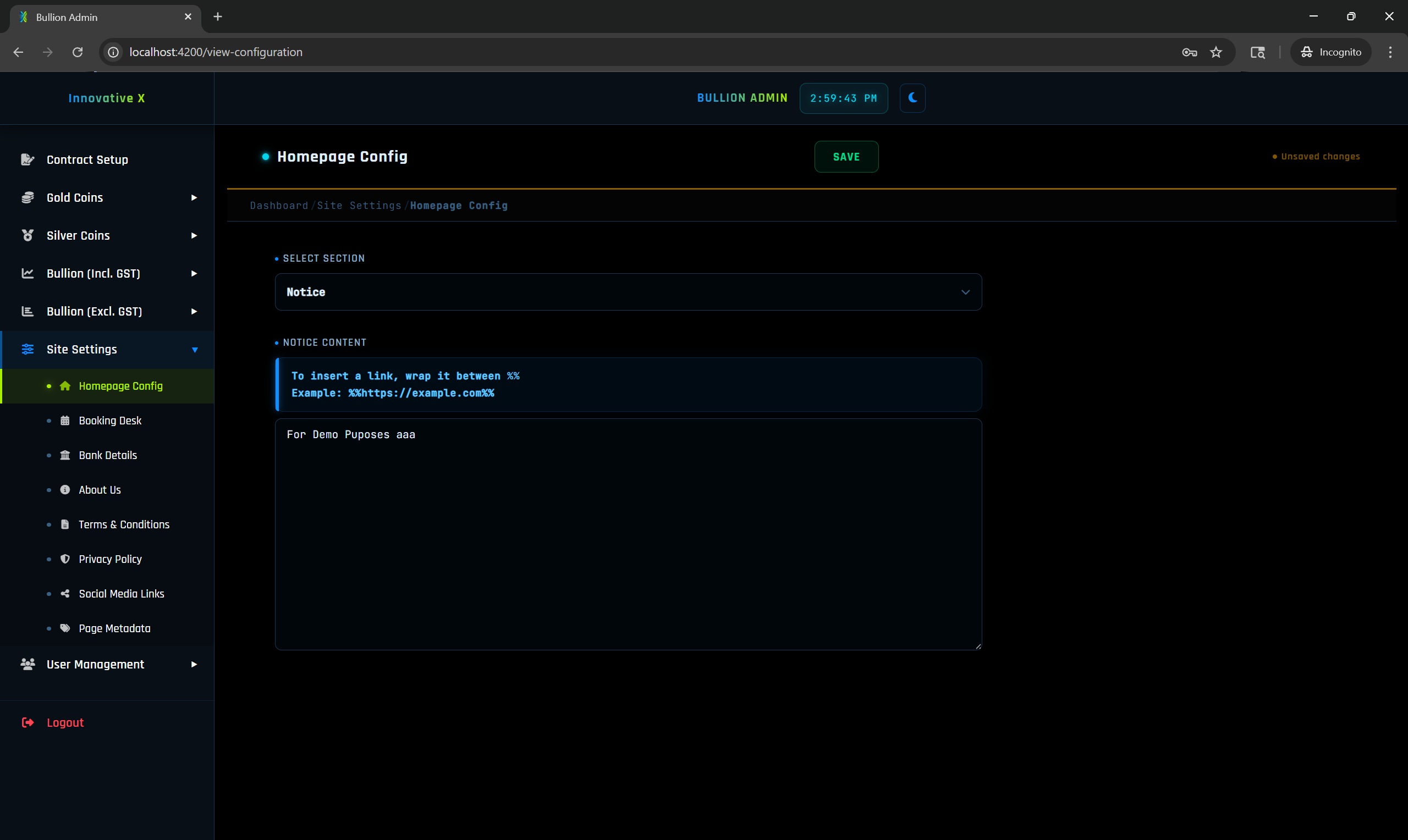
📢 Notice
Write an important notice shown on the home screen — e.g. a disclaimer about Future Market prices or booking instructions.
📰 News & Events
Post news updates or upcoming events for your customers. Use the same %%link%% format to add clickable links.
💬 Top Message
A short banner message shown at the very top of your portal — use for urgent announcements, festive greetings, or time-sensitive notices.
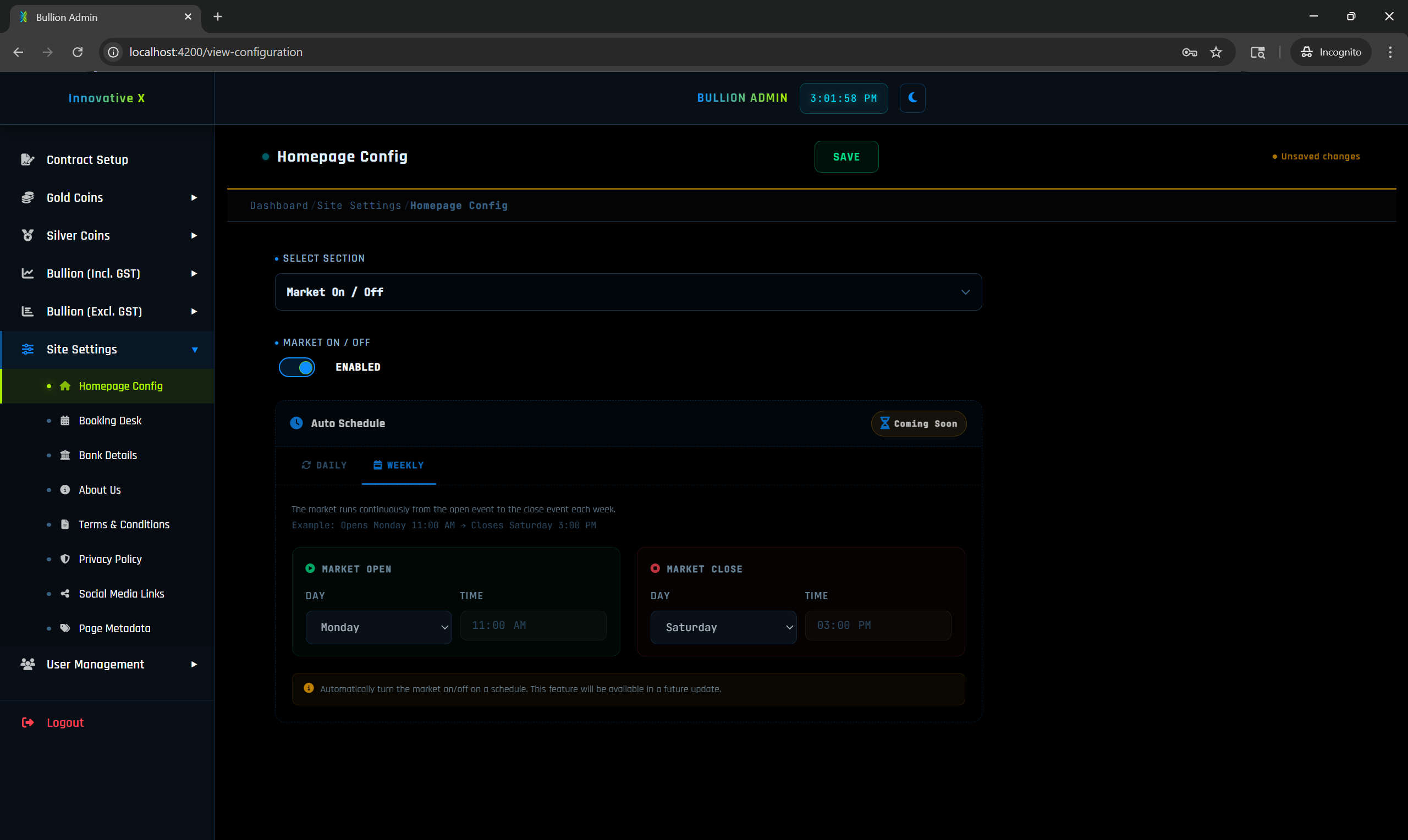
🔴🟢 Market On / Off
Controls whether live prices are visible on your client portal.
📞 2. Booking Desk
Set the booking desk contact details displayed to customers — phone numbers, WhatsApp, or booking instructions. Helps customers know how to place orders or enquire directly.
🏦 3. Bank Details
Add your bank account details shown on the frontend for customers who want to make payments via bank transfer. Keep this updated to avoid payment delays.
ℹ️ 4. About Us
Write your business introduction shown on the About Us page of your client portal. Tell customers who you are, your experience, and why they should trust you.
📄 5. Terms & Conditions
Add your Terms & Conditions content displayed on your web app. This is important for legal clarity with your customers regarding pricing, bookings, and disclaimers.
🔒 6. Privacy Policy
Set your Privacy Policy content shown to customers. Explains how you handle their data and contact information.
🔗 7. Social Media Links
Add your business social media profile links — such as WhatsApp, Instagram, Facebook, or YouTube. These appear on your client portal so customers can follow or contact you directly.
🔍 8. Page Meta Data
Set the SEO meta title and description for your web app pages. This helps your portal appear correctly in Google search results and when shared on social media.
The User Management section allows you to create sub-admin accounts for your team members and control exactly what each person can access and do in the dashboard. This is useful when you have staff who manage prices, scripts, or settings on your behalf.
How to Access: Go to User Management in the navigation panel. You will see two options:
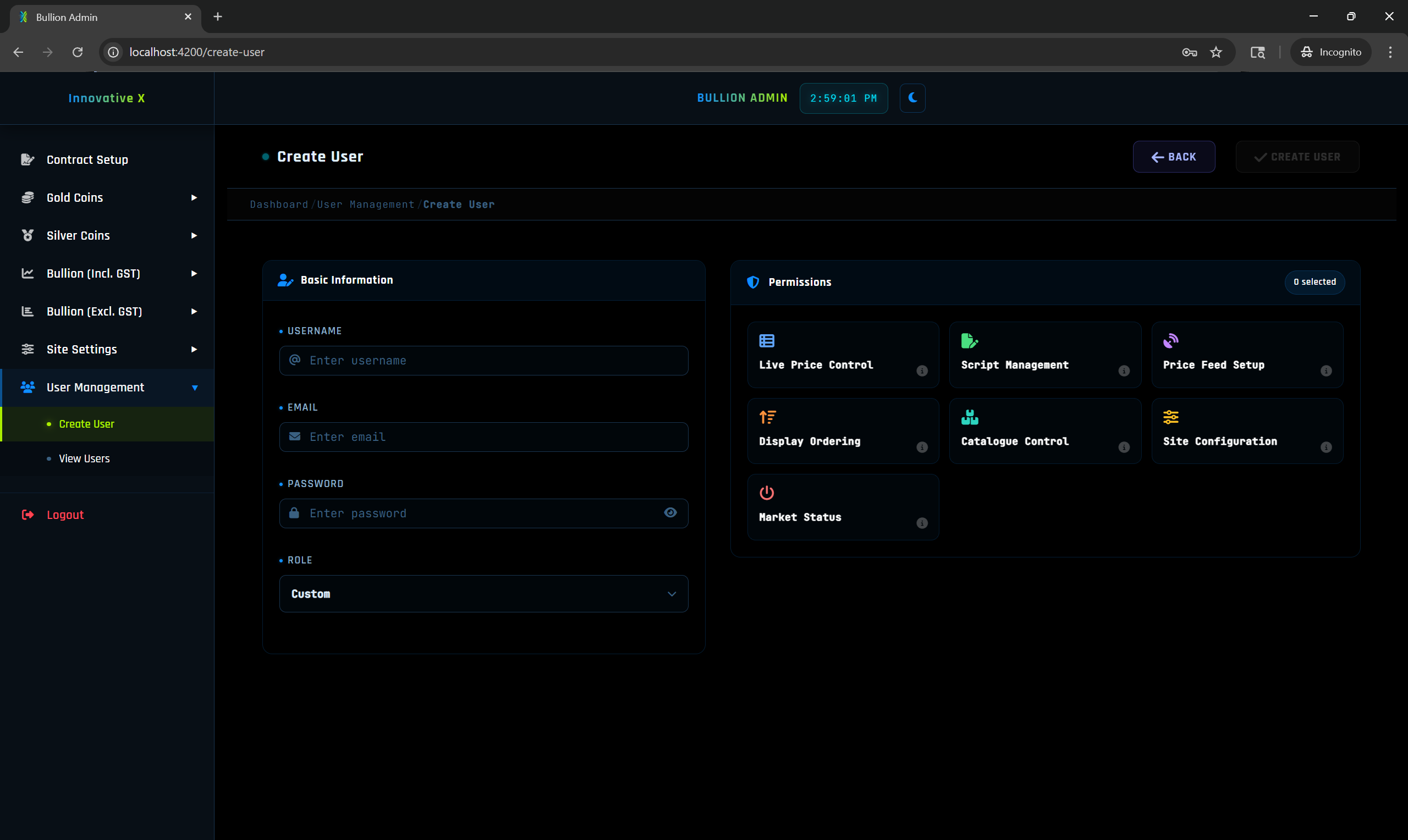
📝 Create User — Form Guide
Click on Create User and fill in the following fields:
🔐 Permissions Explained
⚠️ Assign Permissions Carefully
Only give Delete and Site Setting permissions to trusted senior staff. These permissions allow making changes that directly affect what customers see on your portal.
👁️ View User — Manage Existing Users
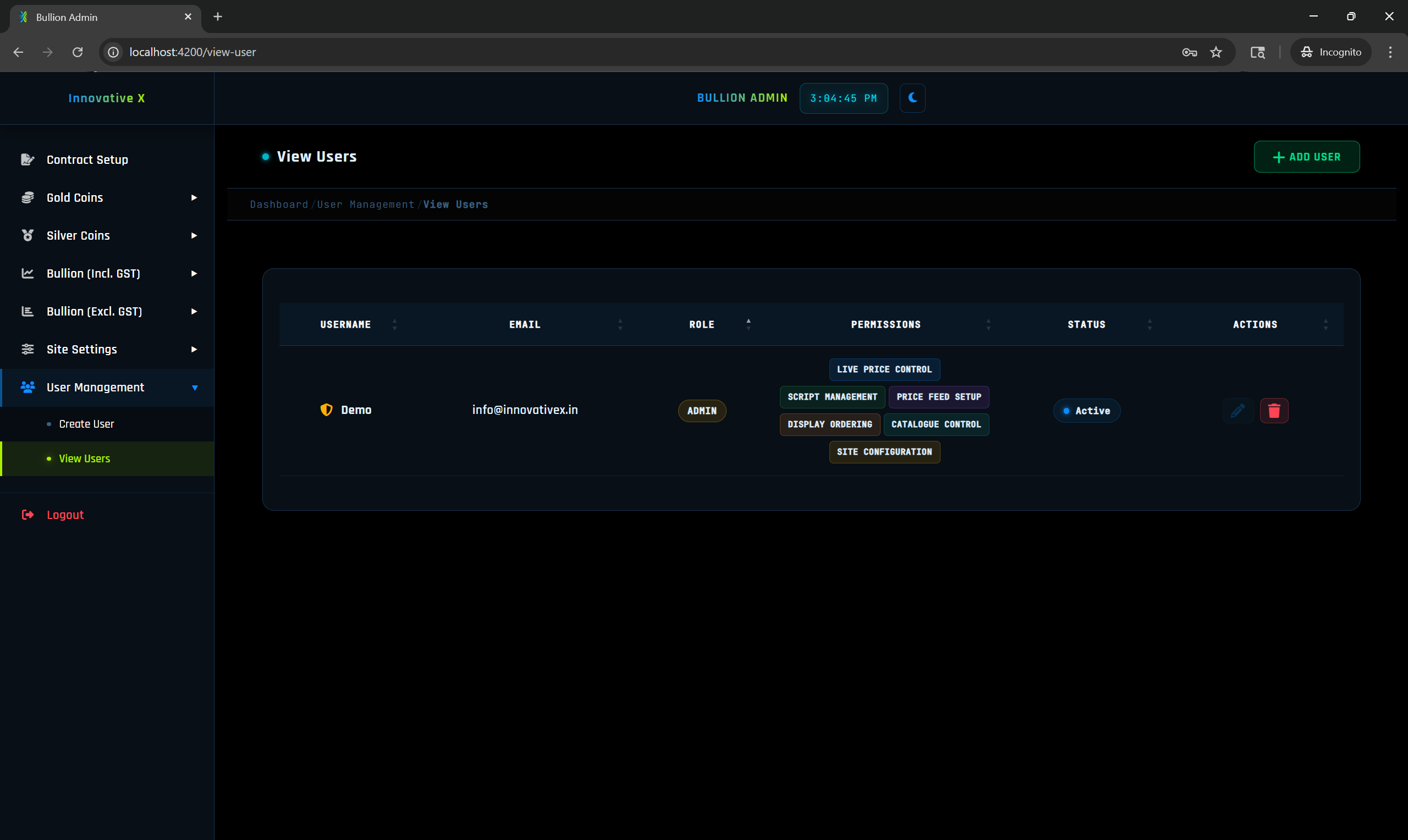
Click on View User to see all created sub-admin accounts in a table showing their Username, Email, Role, Permissions, and Status (Active/Inactive).
In the Actions column you can: